Inviting a new user enables you to add them to your account. If the invitee already has an existing user account, they can access your account using their current login credentials. If they do not have a user account, you can invite the new user using the below steps:
1. Log into your client area at https://secure.lightningbase.com
2. Click on "User management" from the dropdown menu at the top under "Hello <your name>" on your right-hand side.
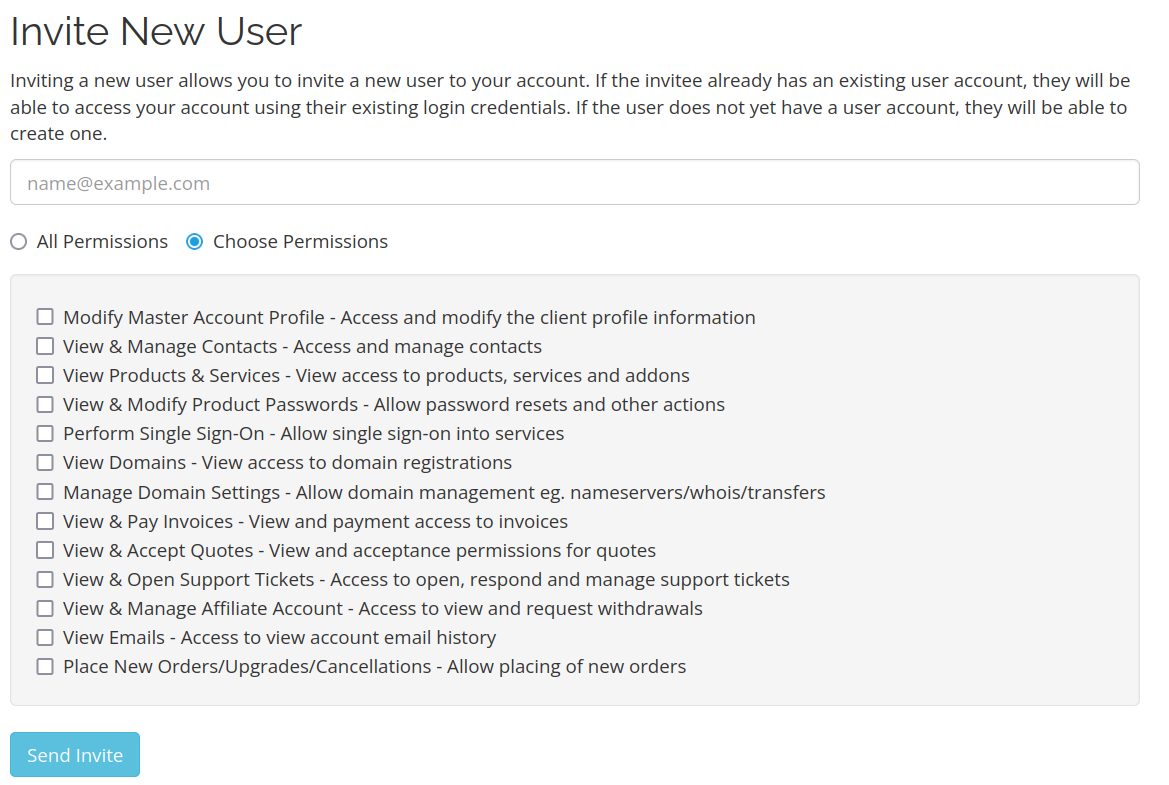
3. Under "Invite New User" you can give the corresponding email address that has to be invited.
4. You can click on Choose Permission on the right-hand side in order to choose the corresponding permissions that you wish to set for this user.
5. Click on "Send invite".
The invited user should receive an email with instructions on how to access the account.
You can grant the user full permissions, or if you prefer to limit their access, select only the checkboxes for the permissions you want to grant. This allows you to customize the permissions for a new user, enabling them to assist with managing your services or accessing specific areas of your account as needed.